
CorvexsDigital / IMAGE TOOLS
Compress Image to 200KB Online
Prepare an image for forms and lightweight sharing. The 200 KB target is selected below; the result tells you whether it was reached.
Choose images. Make them smaller.
Set a size target for one image, or process a batch together.
or drag and drop files here
Downloads our public 1.22 MB test image. No personal file needed; your current settings stay selected.
Up to 20 images · 20 MB and 40 MP per image
More formats & batch details
Also opens HEIC/HEIF, GIF, SVG and PDF. Animation exports as a still image; SVG is rasterised. Single PDF imports let you choose a page; batches use the first page. AVIF support depends on your browser.
Batch mode uses format, quality and width settings, without a KB target. For a specific file-size limit, select one image.
How to use this workflow
- Choose the original file and confirm the destination's minimum dimensions and accepted formats.
- Keep the 200 KB target, choose a format and set maximum width. Disable extra resizing if minimum dimensions matter.
- Compress and check actual bytes, dimensions and visible detail. If the target is missed, change the settings or use a less detailed source.
What to check before saving
For a 200 KB upload with a 600-pixel minimum width, do not accept a smaller result merely because it fits the byte limit. Both requirements must be satisfied.
Inputs are limited to 20 MB and 40 megapixels. JPG, PNG, WebP, AVIF, HEIC/HEIF, GIF, SVG and selected PDF pages are supported. Exports are JPG, PNG, WebP or browser-supported AVIF; animation and source metadata are not retained.
Your files are processed in your browser and are not uploaded to our servers. Normal website requests still reach the hosting service. Read the privacy policy.
Questions & answers
Is 200 KB the same as 200 KiB?
No. This tool uses 200,000 bytes. Some destinations use binary units; inspect their instructions and keep a little margin if they reject a boundary-sized file.
Does the output have to be exactly 200 KB?
The goal is 200000 bytes or less, not padding the file to an exact size. Complex images may still exceed the target; always inspect the reported result.
Understand the settings
Read the related practical guide, or troubleshoot a file or export.
Repeat a measured 200 KB export
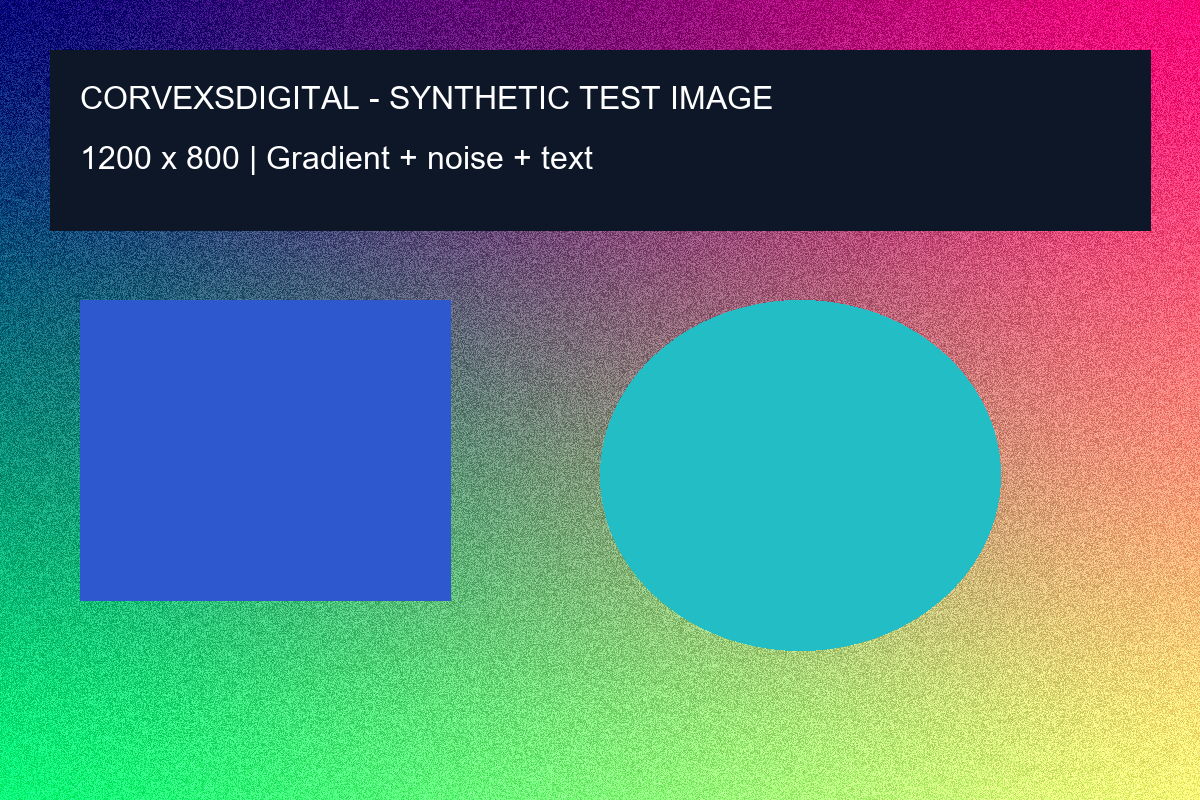
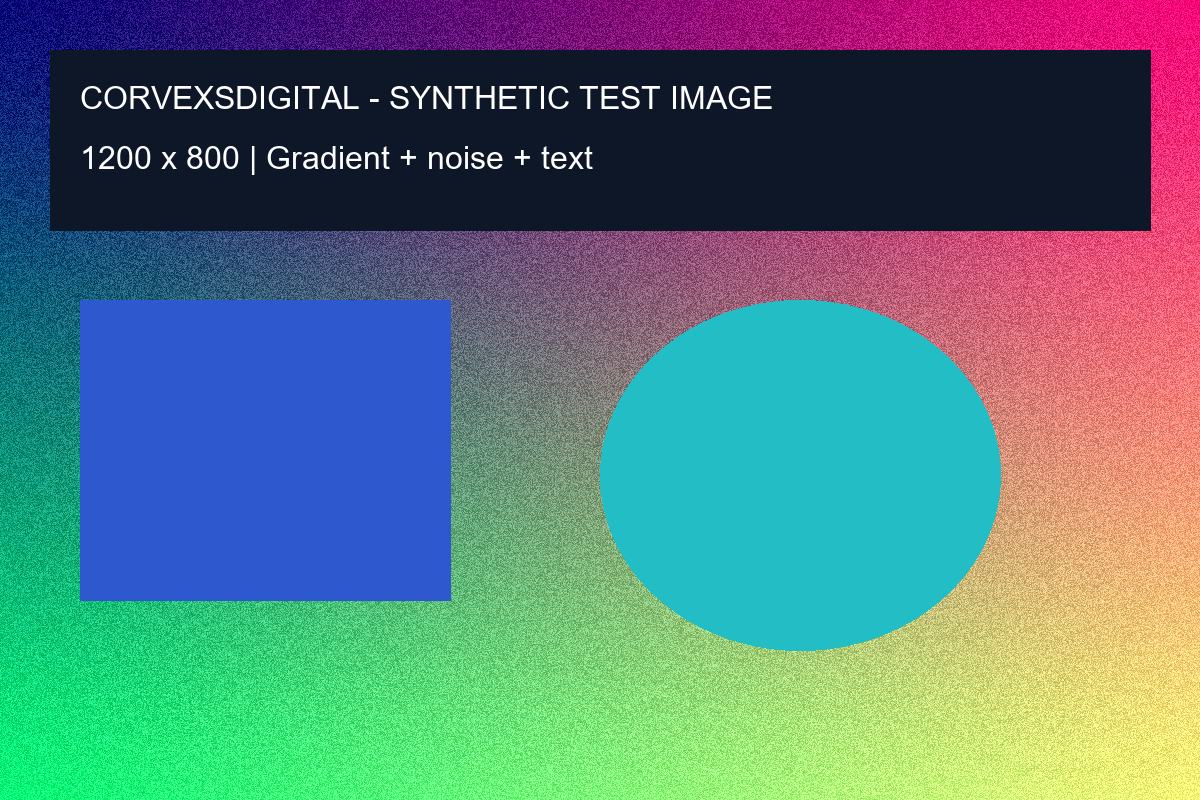
Our synthetic 1200 × 800 PNG contains gradients, noise, shapes and text. On 13 October 2026, the live tool exported it from 1,222,524 bytes to a 193,195-byte JPG without changing dimensions. This is one test in the Windows Codex in-app browser, not an expected saving for your photos.
- Select “Try a sample image” above. Choose JPG, a 200 KB target, maximum quality 80%, width 8192 and additional resizing off.
- Compress and compare your reported bytes with 200,000. Browser encoders can produce a different result from the recorded test.
- Inspect the gradient, small text and edges in the downloaded JPG. Reaching the target is separate from passing your visual check.
Original test PNG · Recorded JPG result. The original is intentionally larger so the experiment can be repeated.
Apply the test to your own image
Replace the sample with your original and keep the destination’s required dimensions. Do not reuse the measured saving as a prediction: a photo, transparent logo and screenshot encode differently.
Diagnose your exported file
Match the symptom to the next action. These checks describe this tool’s current implementation; they are not a guarantee that another website will accept the result.
The result is under 200 KB but the form still rejects it.
A form may check dimensions, format, or image content separately from byte size.
Next action: Read every requirement before exporting. Here 200 KB means 200000 bytes. Check the reported dimensions, open the downloaded file, and confirm its real format. Leave some room below the limit if the destination uses a different measurement.
The size target was reached by making the image too small.
Allowing additional resizing lets the compressor reduce dimensions after trying lower quality.
Next action: Disable additional resizing and choose the required width before another export from the original. If the target is then missed, keep the readable version and reconsider the source or destination limit. Do not upload an unreadable document just because its bytes fit.
If the result still fails, report the exact error and your browser. Include the settings and output dimensions, but do not send private images or identity documents.
Choose an image workflow
Compare image tools ↗Start with the settings for your task. All files are processed locally in your browser.