
CorvexsDigital / TOOL COLLECTION
Choose an image compressor for your task
Choose the workflow that matches your problem. All image tools use local browser processing and save a separate copy.
Fit an upload limit
Use a byte target when the destination rejects a file for being too large. Check its minimum dimensions too.
Change dimensions or format
Resize when there are too many pixels. Convert when the destination needs a different format. These solve different problems.
Choose the output format
JPG suits photographic copies, PNG retains transparency, and WebP is useful where accepted. Compare the actual result.
Start with the destination requirements
Write down the accepted format, maximum bytes and minimum dimensions. For a small application upload, use a byte target. For a website thumbnail, start with display dimensions. For a transparent logo, choose a format that retains transparent pixels.
Know what will change
Inputs can be JPG, PNG, WebP, browser-supported AVIF, HEIC/HEIF, GIF, SVG or a selected PDF page, up to 20 MB and 40 megapixels. Exports are JPG, PNG, WebP or AVIF where browser encoding is supported. Animation becomes a still image; SVG becomes pixels; PDF exports one page as an image. The tools do not crop, upscale or remove backgrounds.
Choose a guide for the decision
What is the best image compressor for your task?
The useful choice depends on your format, byte limit, required dimensions and privacy needs. CorvexsDigital combines single-image size targets, batches of up to 20 images and local resizing. Compare the actual export rather than assuming one compressor is best for every file.
| Your task | Relevant workflow | Important tradeoff |
|---|---|---|
| Fit an image under 100 KB or 200 KB | 100 KB target or 200 KB target | Check minimum dimensions and readable detail. A target is not guaranteed. |
| Compress several photos without uploading them | Batch workflow | Select up to 20 images; each output has a different size. Batch mode has no KB target. |
| Keep screenshot text readable | Screenshot reading test | Inspect the smallest meaningful text at the intended display size. |
| Keep a transparent logo | PNG or WebP | PNG ignores the quality slider. JPG puts transparent areas on white. |
| Prepare website or shop images | Image resizer and product-photo guide | Start with display dimensions; resizing does not crop or enlarge the source. |
When another workflow is useful
Squoosh is another local image tool worth considering when you want to explore codecs and inspect differences. Its official project documentation distinguishes local image processing from analytics. For programmatic site integration, Tinify’s developer API and integrations address a different workflow; CorvexsDigital currently has no developer API. These are feature distinctions, not a tested quality ranking or an endorsement from those providers.
A measured 200 KB example
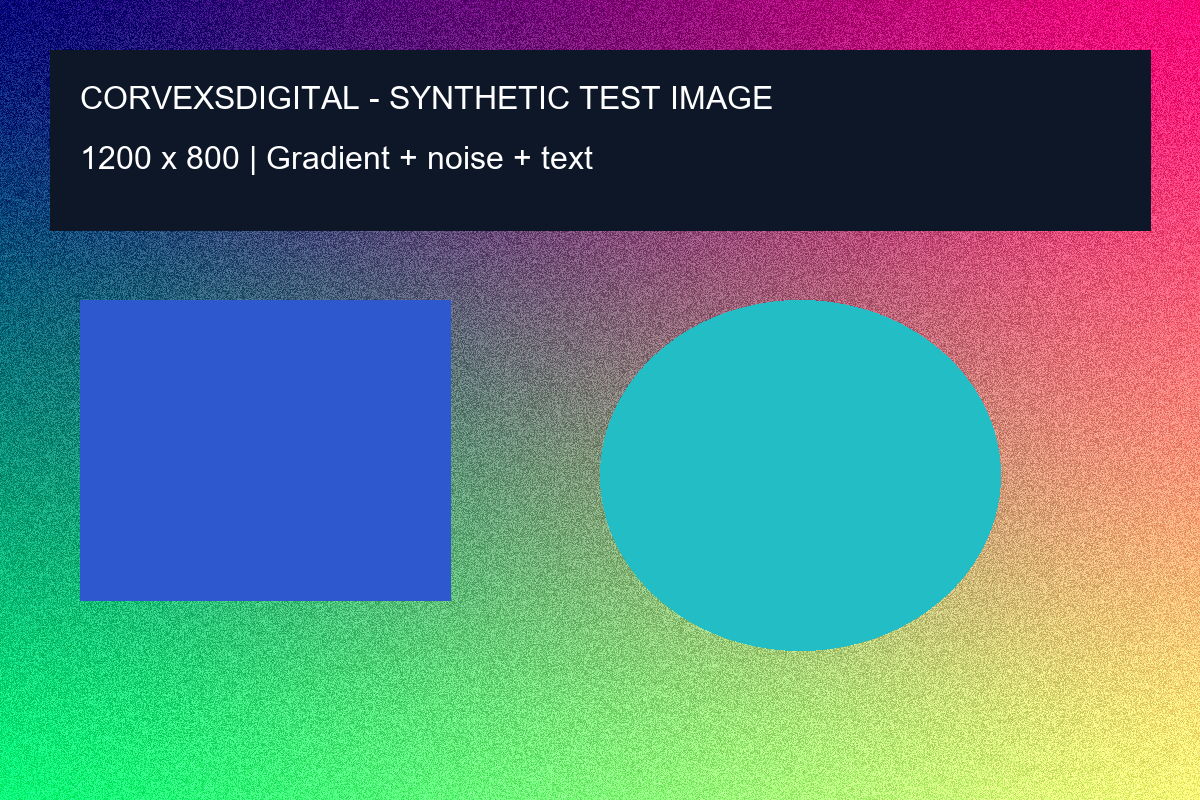
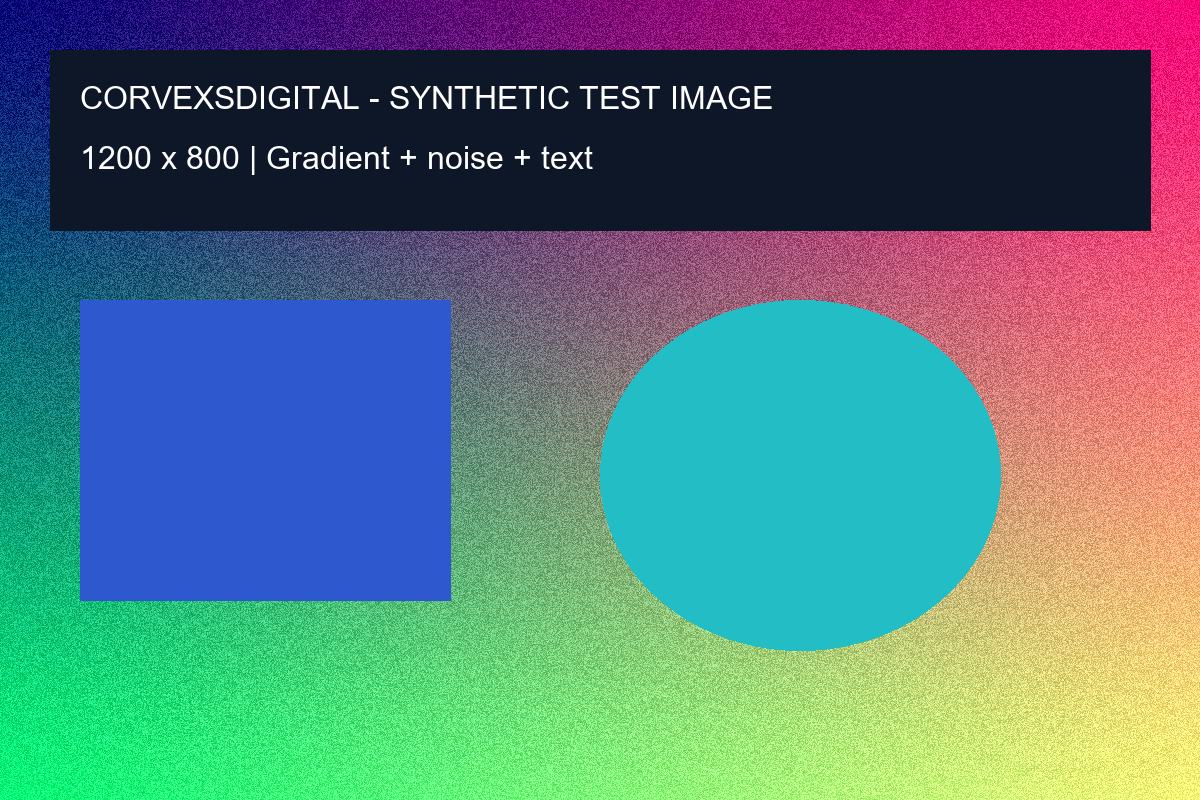
On 13 October 2026, the live CorvexsDigital image studio exported our synthetic gradient, noise, shapes and text PNG to JPG: 1,222,524 input bytes to 193,195 output bytes, with dimensions retained at 1200 × 800. The 200,000-byte target was reached in this run.
Repeat the example using JPG, a 200 KB target, maximum quality 80%, maximum width 8192 and smaller dimensions disabled. It was tested in the Codex in-app browser on Windows; the exact browser version was unavailable. Different browser encoders can produce different results.
Download the synthetic original PNG · Download the measured JPG output. This is one synthetic test, not an average saving, photo-quality benchmark, speed comparison or lossless claim. Inspect both files and judge the result for your own destination.
Your files and privacy
Selected media is processed in your browser and is not uploaded to our servers. Loading the website still makes hosting requests. Keep your master files and inspect each result before sharing. Read the privacy policy or get help with a tool.